


Activity logs are also known as audit logs, security logs, or security audit logs. It records every change that happens on a website. Every activity log has a unique event ID, user details, time, user’s IP address, and details of what changed. Do you want to monitor user activity on your WordPress site?
Keeping an activity log in WordPress helps you track and monitor user actions on your website. Because It helps you to identify suspicious activities like failed login attempts, plugin activation deactivation, and even DDoS attacks. Or if you think to see exactly what people are doing on your site. This article is for you.
In this article, I’ll show you how to track user activity and keep a security audit log in WordPress.
Why It’s Necessary to Track User Activity?
When you run your own big website, you should know exactly what’s going on. If anything happens, you’ll know what, when, and why that’s happened and who did that, and also who is responsible for that. Because when the website grows, you need to collaborate with writers and editors to maintain the website.
WordPress activity logs can also show failed login attempts. It’s an essential part of website security. To monitoring failed login attempts, you’ll understand how much hackers are continually trying to gain admin access. 90% time, they are doing it with the right username. It’s scary.
Monitor User Activity with “Activity Log”
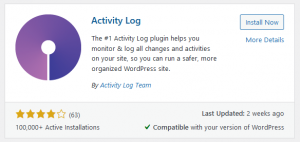
Activity Log plugin can help you to monitor & log all changes and activities on your site. See our step-by-step guide How to install a plugin properly (Article Coming Soon).
With this plugin, you can log pretty much everything. Like, All user’s activities log like Login, Logout, Login has failed, Update profile, Registered, & Deleted. All Themes & plugin’s log Installed, Updated, Activated, & Deactivated. All posts, pages, CPT, menu, media, category, taxonomies log Created, Updated, & Deleted. You can also monitor the comment logs, settings logs, etc.
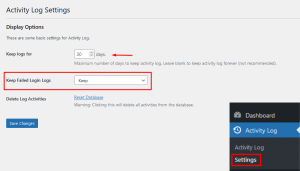
After installation, Go to the plugin page (under Dashboard » Activity Log » Settings) and make sure to set “Keep logs for” 30 days or as much you need. In this way, you can see the last 30 days’ logs records. The rest of the records will be deleted automatically. Don’t set this field empty otherwise plugin stores all logs records for a lifetime on the database, It’s not recommended. And also set “Keep Failed Login Logs” to Keep. You can delete the plugin data by clicking “Reset Database“.
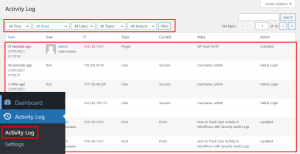
To see all activity log, Go to (under Dashboard » Activity Log). Here you can see all of your website activities one by one in list view. You can also filter them to see any specific activity. 5 ways you can filter such as time, user role, specific user, topics, & actions.
How to Check Failed Login Record?
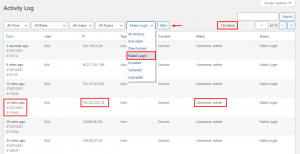
To check Failed login record or log, you need to just filter it. Click (All Actions » Failed Login) and apply filter. See the above screenshot. Here you can when someone tried to log in, what is their IP address, & with which username they tried, & also the action status. At the top right corner, you can see the total number of a failed login records.
If you want to download the activity log of your site, then simply go to the (under Dashboard » Activity Log) then scroll down and click the Export as CSV button.
That’s all. We Hope this article helped you understand How to Track User Activity in WordPress with the Activity log plugin.

